License Portal
Setting Up SCIM and Just-In-Time Provisioning
This article explains how to set up automatic user provisioning for AQT One, so accounts are created (and, with SCIM, deactivated) from your identity provider rather than by manual invitation. It is intended for workspace Owners and Admins, and both methods require enterprise SSO to be configured first. See Setting Up Single Sign-On (SSO).
Two provisioning methods are available:
SCIM provisioning (recommended): your identity provider creates and deactivates AQT accounts automatically as people join and leave your directory.
Just-In-Time (JIT) provisioning: an account is created automatically the first time a user signs in with an email on your verified domain.
If you are looking to add users by email invitation instead, which works for every workspace, with or without SSO, see Adding and Removing Users from a License.
Which method should I use?
For organisations managing real headcount turnover, we recommend running SCIM end-to-end, with Allow Just-In-Time Provisioning turned off. With SCIM as the only provisioning path, your directory is the single source of truth: only users assigned to the AQT application in your identity provider get access and consume a seat, and removing them there frees the seat automatically. With JIT left on alongside SCIM, anyone on your verified domain can create a licensed account just by signing in, bypassing your directory's assignment controls.
JIT on its own is a great quick start and works well for smaller organisations where anyone on the domain should have access.
Setting up SCIM provisioning (recommended)
SCIM is an optional layer on top of OIDC that keeps AQT in sync with your directory automatically: accounts are created when people are assigned to the application in your identity provider, and deactivated when they are removed, freeing their license seat.
The full user lifecycle is handled from your identity provider, so your team never needs to touch the AQT portal for joiners or leavers. If a user already has an AQT account, from JIT or a manual invitation, SCIM links the existing account rather than creating a duplicate.
To set it up:
In the SCIM Provisioning section of your workspace's authentication settings, click Generate Token, choose the identity provider the token belongs to, name it, and copy the token. It is shown only once.
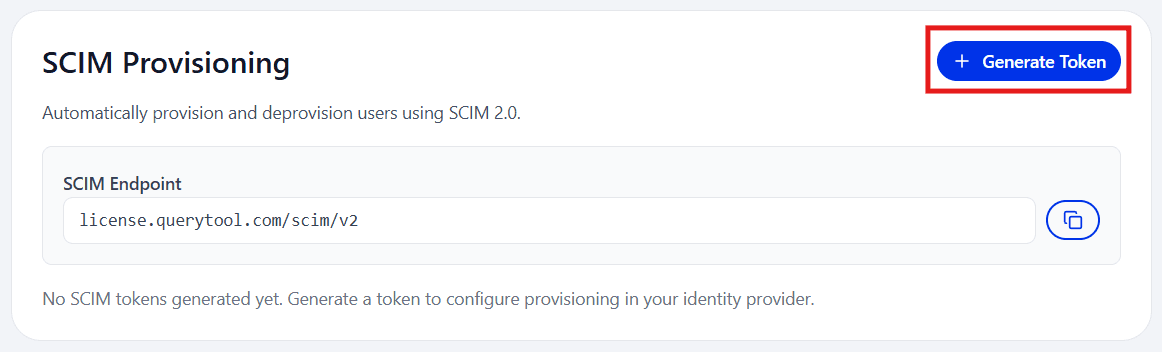
In your identity provider, point SCIM at
https://license.querytool.com/scim/v2using the token as a Bearer credential. TheuserNamefield (the user's email) is the required attribute.Use a separate token per provider. Each token is tied to one provider, so revoking one never affects another.
Setting up Just-In-Time provisioning
When Allow Just-In-Time Provisioning is enabled on your identity provider configuration, any user who signs in with an email on your verified domain gets an AQT account created automatically on first login. They are placed in that provider's Default License Group, so they draw a seat from the correct pool without an admin doing anything.
JIT is enabled by default when you configure an identity provider. Turn it off if you want to control account creation through SCIM or invitations.
It's worth noting that JIT is onboarding-only. There is no signal back to AQT when someone leaves your organisation, so an admin has to de-provision departed users manually in the AQT License Portal to free up their licenses. With SCIM, by contrast, de-provisioning happens from your identity provider: removing the user there deactivates them in AQT and frees their seat automatically.
JIT also licenses anyone on your verified domain who signs in, regardless of whether they have been assigned to the AQT application in your identity provider. If you control who gets AQT through directory group assignment, that behaviour works against you, which is why we recommend turning JIT off once SCIM is in use.
Choosing where provisioned users land: the Default License Group
Every identity provider configuration has its own Default License Group setting. Users created via SCIM or JIT are automatically placed in that group and assigned a license.
If the default group is left unset, or the chosen group has no free seats, provisioned users are created with no group. This means they can sign in to the portal, but cannot activate AQT until an admin assigns them a license.
Frequently asked questions
Do users need to be invited before they can sign in? Not once provisioning is set up. With SCIM, users are created as soon as they are assigned to the AQT application in your identity provider. With JIT enabled, anyone with an email on your verified domain can sign in and have an account created automatically. Without either, users need an email invitation from an admin.
Does a provisioned user still need a license assigned manually? No. Provisioned users are automatically placed in the provider's Default License Group and draw a seat from that pool. Manual assignment is only needed if the default group was unset or full at the time they were created.
Can provisioned users be given Extended licenses automatically? Yes. Set the provider's Default License Group to the Extended group (or any other group). If some users need Standard and others Extended, provision into one group by default and move the exceptions afterwards from the Licenses tab.
We have many existing users to add at once. Do we need provisioning? Not necessarily. You can use the Bulk import button on the Licenses or Users tab. This sends invitation emails and allocates licenses in a single step, but lacks other benefits of using SSO.
Troubleshooting
SCIM Test Connection returns 401. The token is wrong, expired, or revoked. Paste the token on its own, with no "Bearer " prefix (Entra adds it for you), and confirm the base URL is exactly https://license.querytool.com/scim/v2 with no trailing slash.
Users are not being created. In the IdP, set provisioning to Automatic (not Manual) and make sure the users are assigned to, or in scope for, the application. Map userName to the user's email, as that is the required unique identifier. Check the IdP's provisioning logs, since SCIM failures are often silent on the AQT side. Confirm the token has not been revoked.
Provisioned users land in the wrong pool, or no pool. Each provider has its own Default License Group. Open that provider and set it to the intended pool. If it is left unset, or if the chosen group has no free seats, provisioned users are created with no group.