Getting Started
Activating or Deactivating AQT
This article is intended for users who wish to activate or deactivate the AQT program on their computer. To read about assigning and unassigning licenses as an Admin in the AQT License Portal, please click here.
Before activating AQT, your organisation’s Admin will have already selected the activation method you should use. Follow the steps for the activation method assigned to you below.
To follow along with this guide, you will need to have the latest version of AQT installed.
Activating with an Account
Accepting an invitation to create an account
If you do not already have an account in your organization’s AQT workspace, your Admin will have sent you an invitation to join to your email. Open that email and click the button or link inside.
You will be prompted to enter your name and a password in order to create your account.
Activating AQT
Open the AQT program. If it is not currently licensed, the License Management window will automatically open.
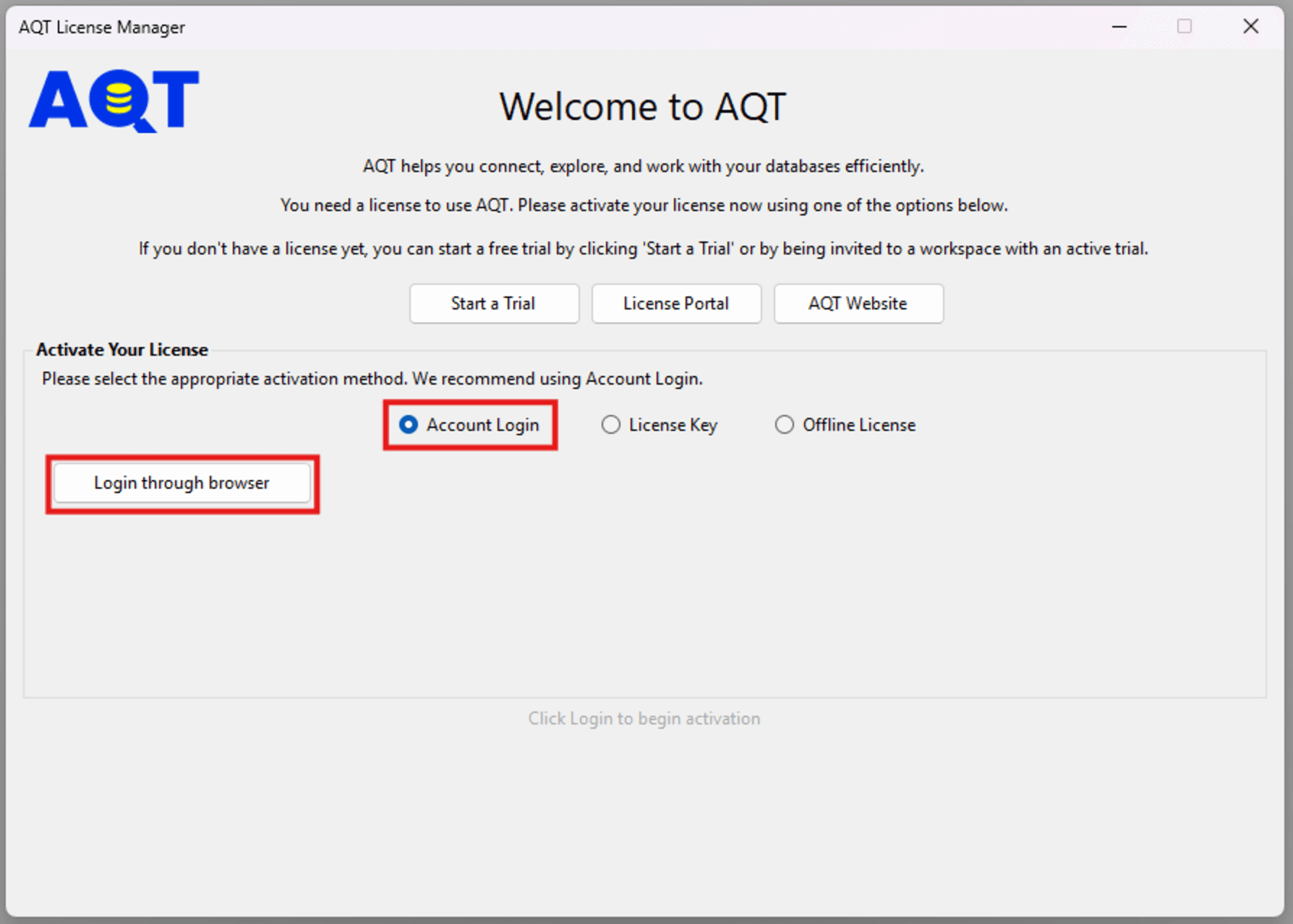
Ensure “Account Login” is selected, then click the “Login through browser” button. This will open your web browser.
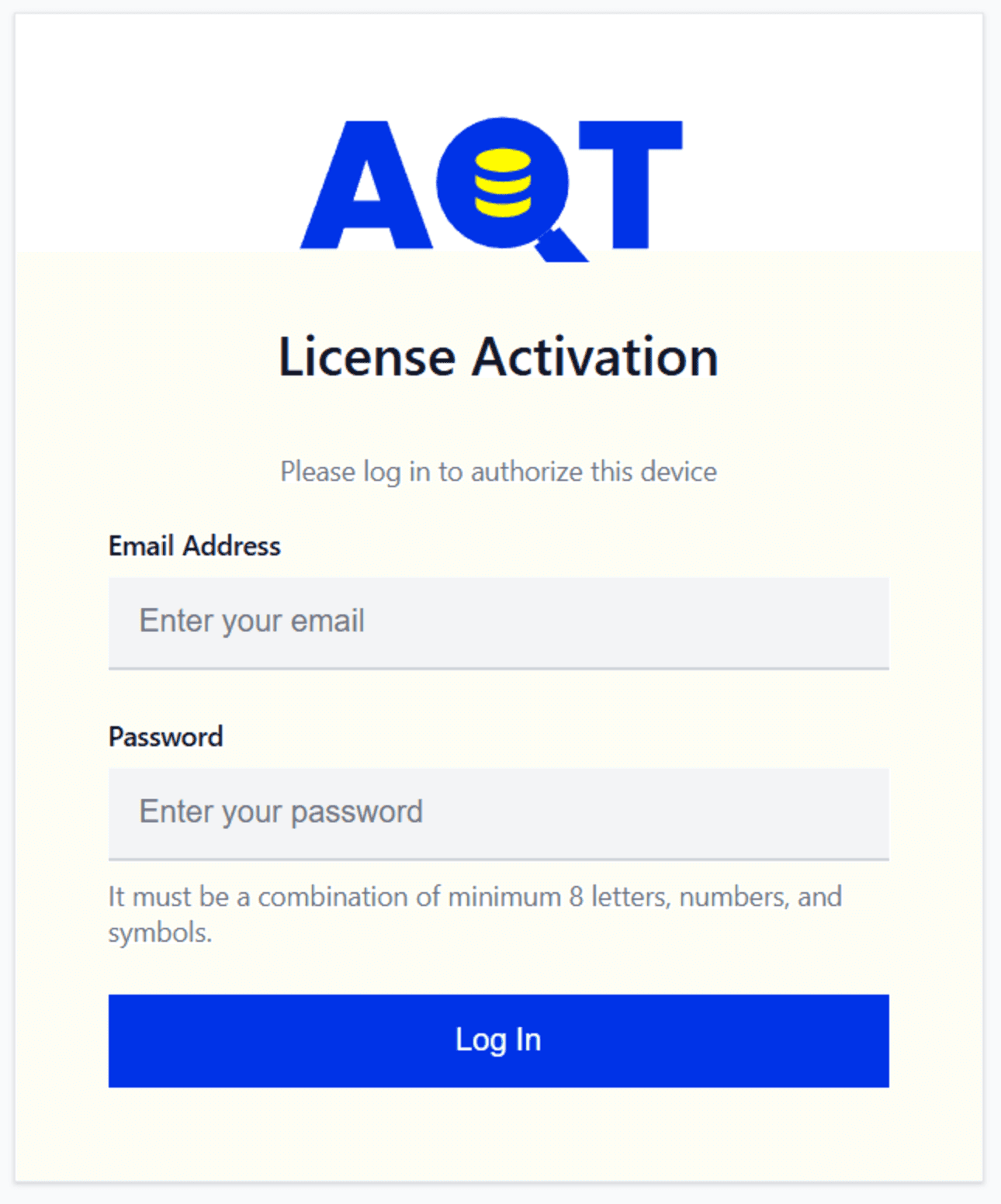
If you weren’t already signed in to your AQT account, you will be prompted to enter your email and password.
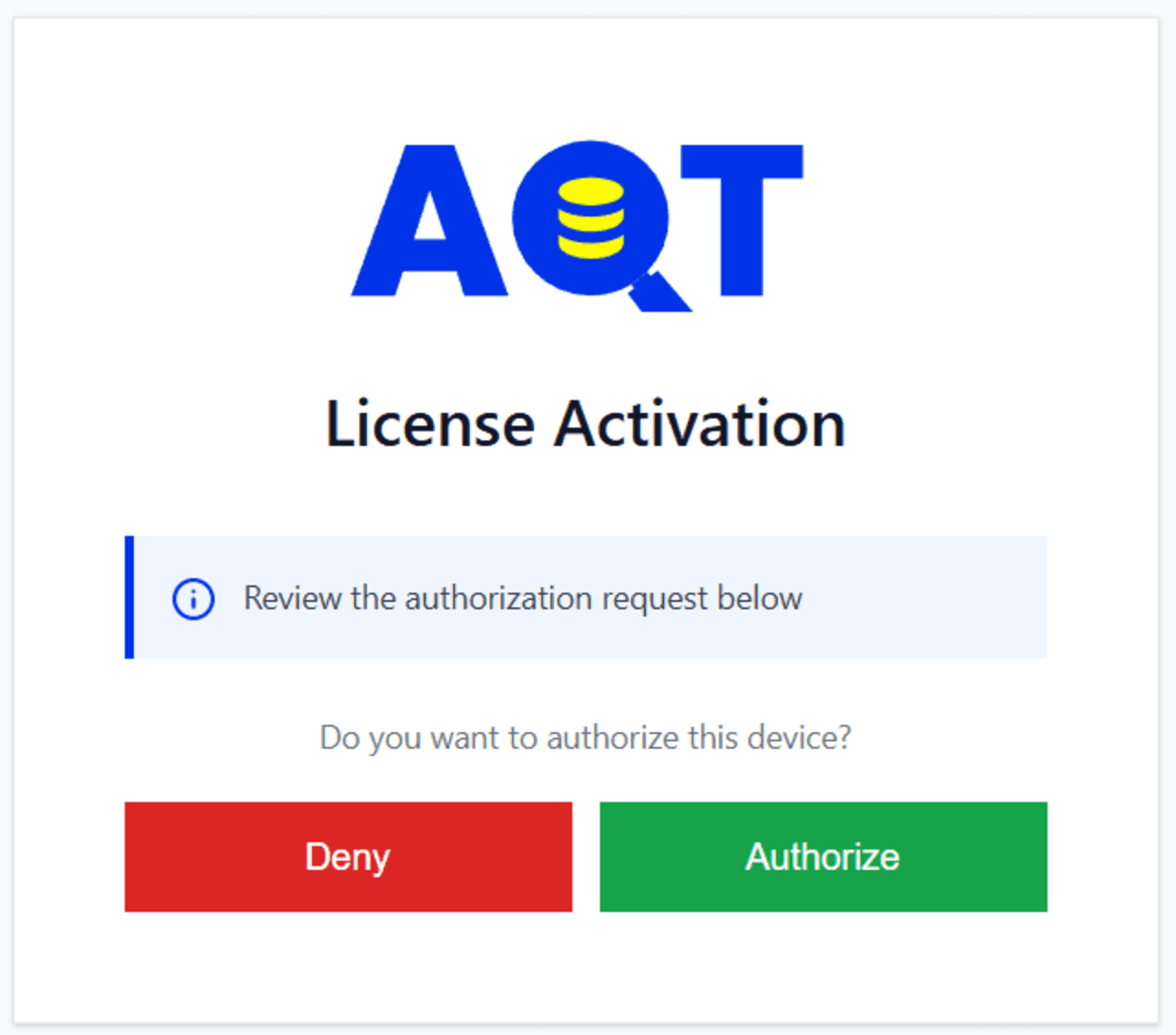
After logging in, click on the "Authorize" button.
AQT should now be activated.
Activating with a License Key
If your Admin provided you with a license key, you will be using it to activate AQT.
Open the AQT program and select “License Key”.
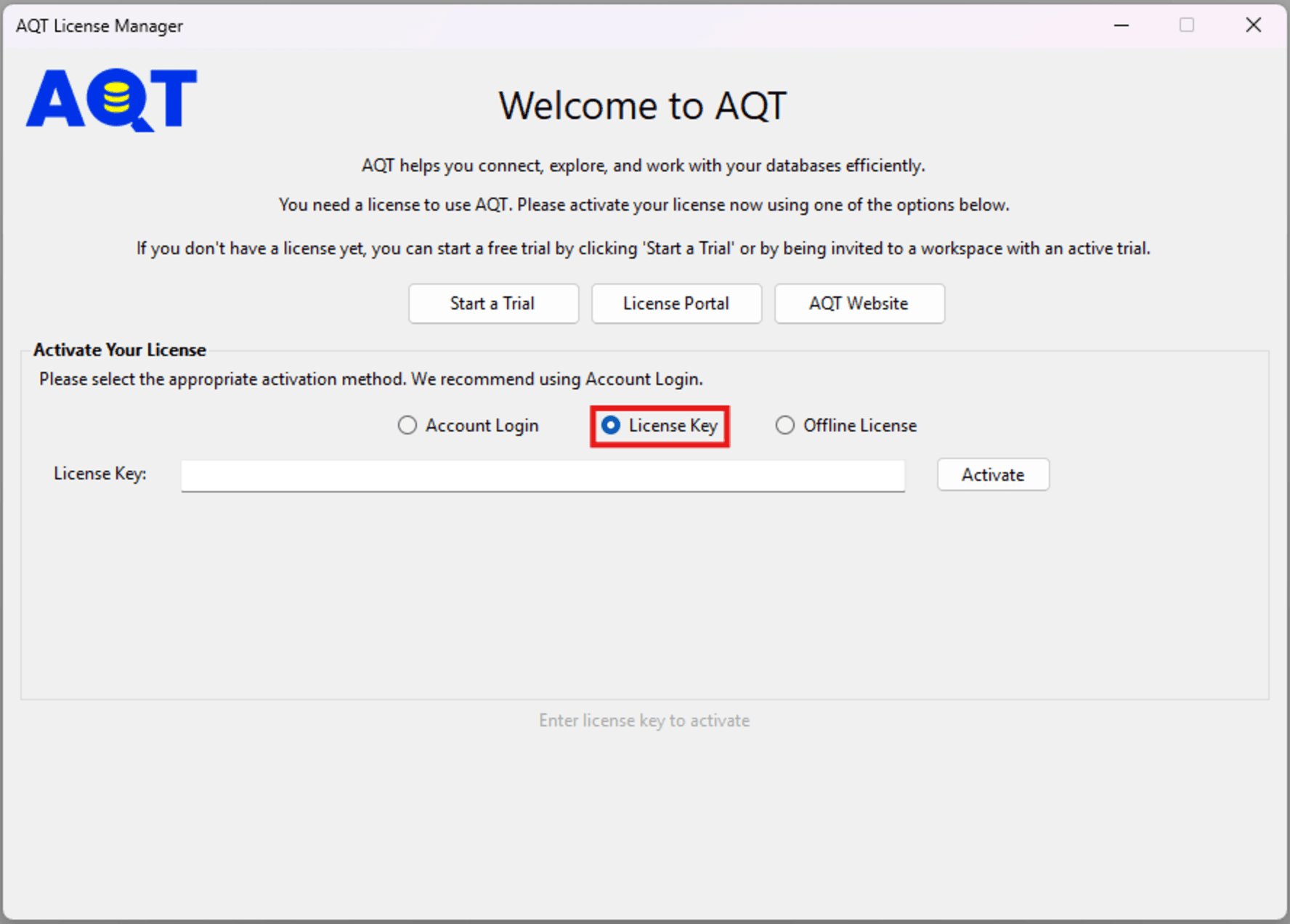
Paste the license key you were provided with into the text box and click the “Activate” button.
AQT should now be activated.
Activating with an Offline License
Please be aware that offline activation is only recommended for air-gapped machines or for machines on extremely restrictive networks as it circumvents the need to connect with our licensing server.
In the AQT License Manager window, select “Offline License”.
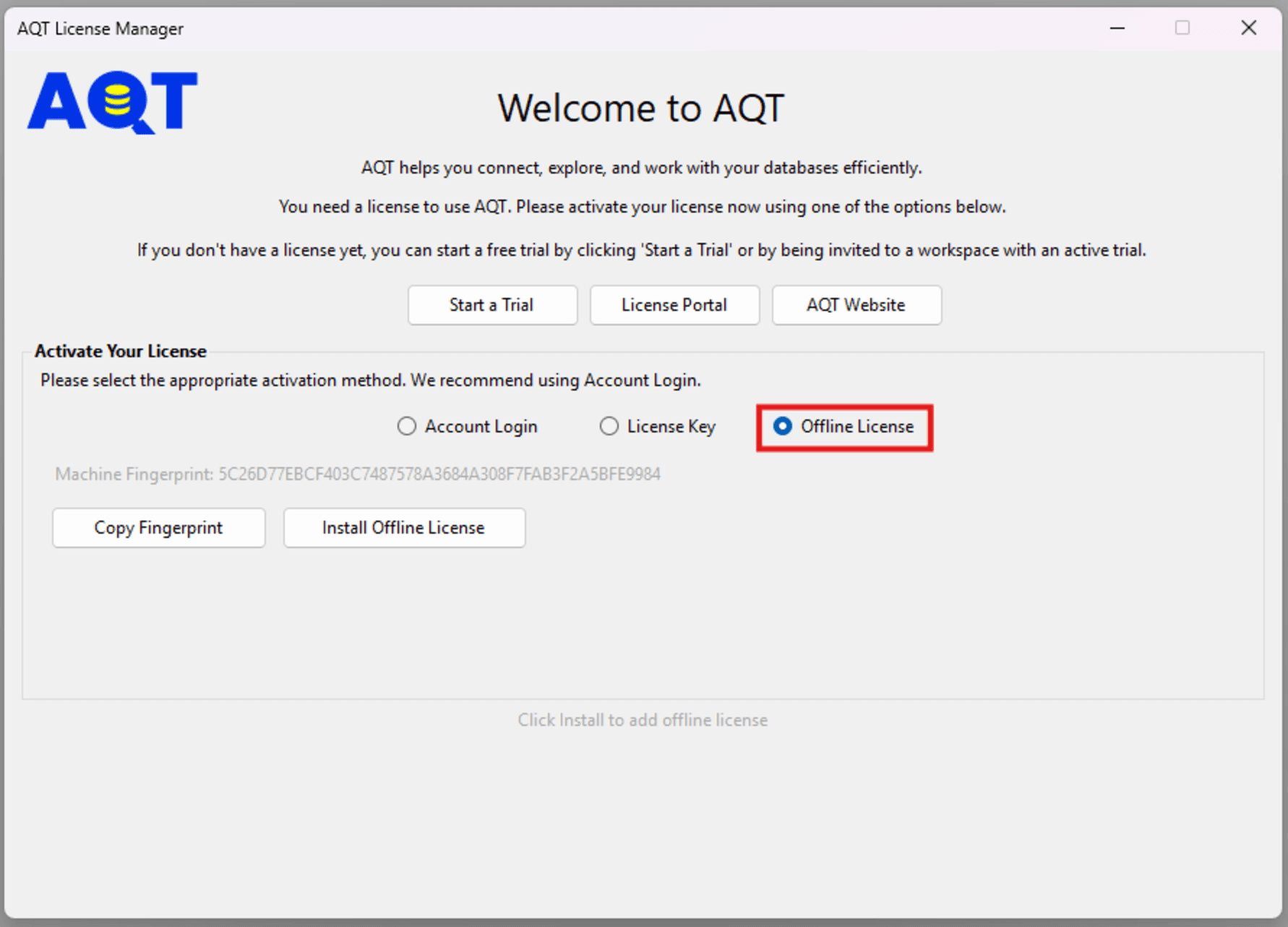
Press the “Copy Fingerprint” button. This will have copied a unique code to your computer’s clipboard. You will need to provide this to your Admin. They should then follow the instructions in this guide.
Your Admin will then provide the offline license file, which you will need to put onto your machine (via a USB drive, for example).
Click the “Install Offline License” button, then select the offline license file.
AQT should now be activated.
Deactivating AQT
From within AQT, click "Help" in the top menu bar, then click "Deactivate License".
In the AQT License Manager, click "Deactivate"
AQT will now be deactivated.