License Portal
Adding and Removing Users from a License
This article is intended for Admins of a workspace. For Users trying to activate or deactivate their license, please click here.
AQT One makes it easy for administrators to manage user access and license assignments directly through the License Portal.
This article explains how to add new users, remove existing ones, and manage licenses effectively.
Accessing the License Portal
Go to license.querytool.com
Sign in using your AQT One account credentials.
Methods of Activation
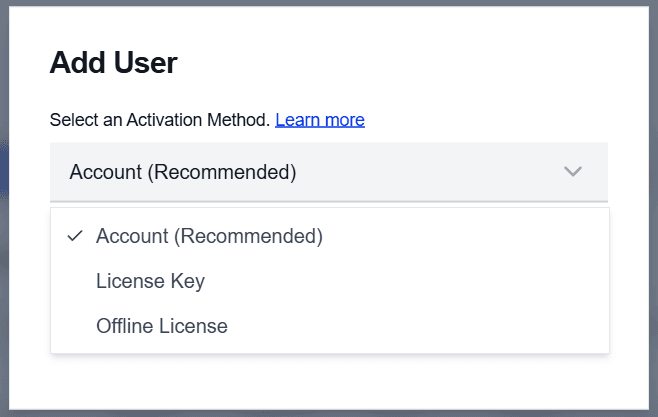
There are three methods for Users to activate their assigned AQT seat. As an Admin, you decide which method of activation they will use when you assign their seat in the License Portal.
Account-Based Activation (recommended)
Account-based activation is the recommended method. It allows users to easily manage their own activations across devices. This means switching machines requires no administrative action, and it prevents a single user from unintentionally consuming multiple license seats.
When you invite a user to activate via an account, they will need to accept the invitation sent to them via email and set a password in the AQT License Portal. They will then be able to enter this email and password combination into the AQT product to activate it.
Key-Based Activation
Key-based activation is ideal for environments where you do not wish to use AQT accounts. Each user activates AQT by entering a unique license key. This method is simple, but requires admins to manage keys carefully to prevent unintended reuse or over-allocation.
Offline Activation
Offline activation is only recommended for air-gapped machines or for machines on extremely restrictive networks as it circumvents the need to connect with our licensing server. This method involves adding a machine’s unique fingerprint (provided by the AQT program) into your license portal, then downloading your offline license file and adding it to the computer in question.
Providing AQT Access to a New User
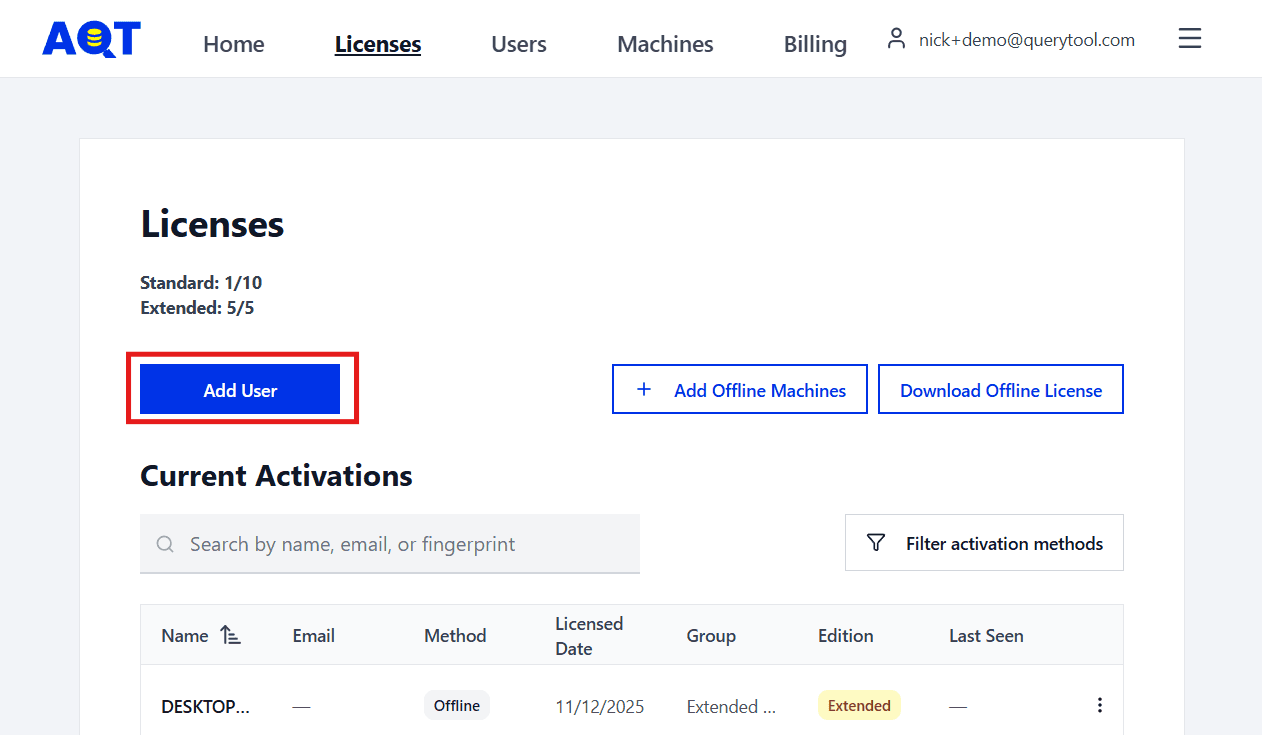
Click on the Licenses tab at the top of the screen.
Click on the Add User button.
Select the desired activation method for the user from the dropdown.
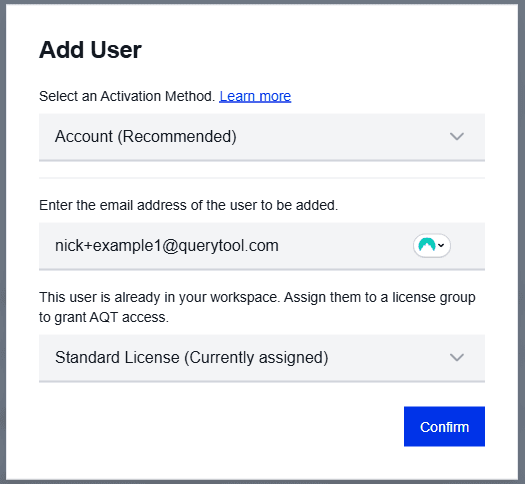
Follow the instructions in the modal.
Providing AQT Access to an Existing User
If a user has already been added to the AQT License Portal, but does not have AQT access (due to not being assigned to a license group), there are two ways to give them access.
Go through the Add User flow described above. When you enter their email address, the License Portal will detect that they already have an account and will allow you to assign them to a license group.
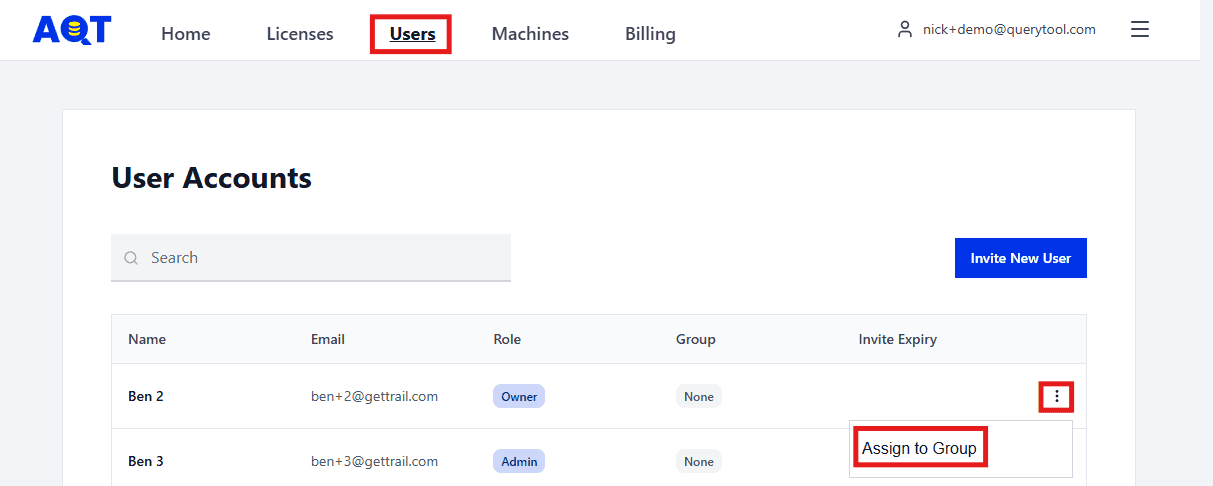
Go to the Users tab from the top menu, click the three dots on the right-hand side of their row, and click Assign to Group. Then, select which license group you wish to add them to.
Removing Access to AQT
If a user should no longer have access to AQT, you can simply unassign their access from the License Portal.
Click on the Licenses tab at the top of the screen.
Find the user whose access you wish to remove. The search function may help with this.
Click on the three dots on the right-hand side and click Unassign.
