Reseller Guide
AQT Reseller Portal Guide
This guide is for authorised AQT resellers who manage customer licensing, quotes, and purchase orders.
The AQT Reseller Portal is a self-service platform that lets you generate quotes, submit purchase orders, and access invoices for all customers you manage.
How the Reseller Portal works
The Reseller Portal at license.querytool.com is the system of record for AQT licensing transactions. All quotes and purchase orders for your managed customers go through it.
Quotes generated in the portal are automatically prorated against the customer's renewal date, so the customer is only charged for the time remaining in the current cycle. POs submitted in the portal are processed instantly and licenses are delivered automatically.
Quick overview
Open the customer's page in the portal.
Generate a quote (proration is applied automatically).
Submit your PO against that quote.
Licenses are delivered, invoice is emailed.
Accessing the AQT Reseller Portal
Access to the AQT Reseller Portal is provided by the AQT team. If you believe you should have access but do not yet have an account, please contact us at support@querytool.com.
To log in, visit license.querytool.com and sign in using your email address and password.
Navigating the Portal
The top navigation menu has two tabs:
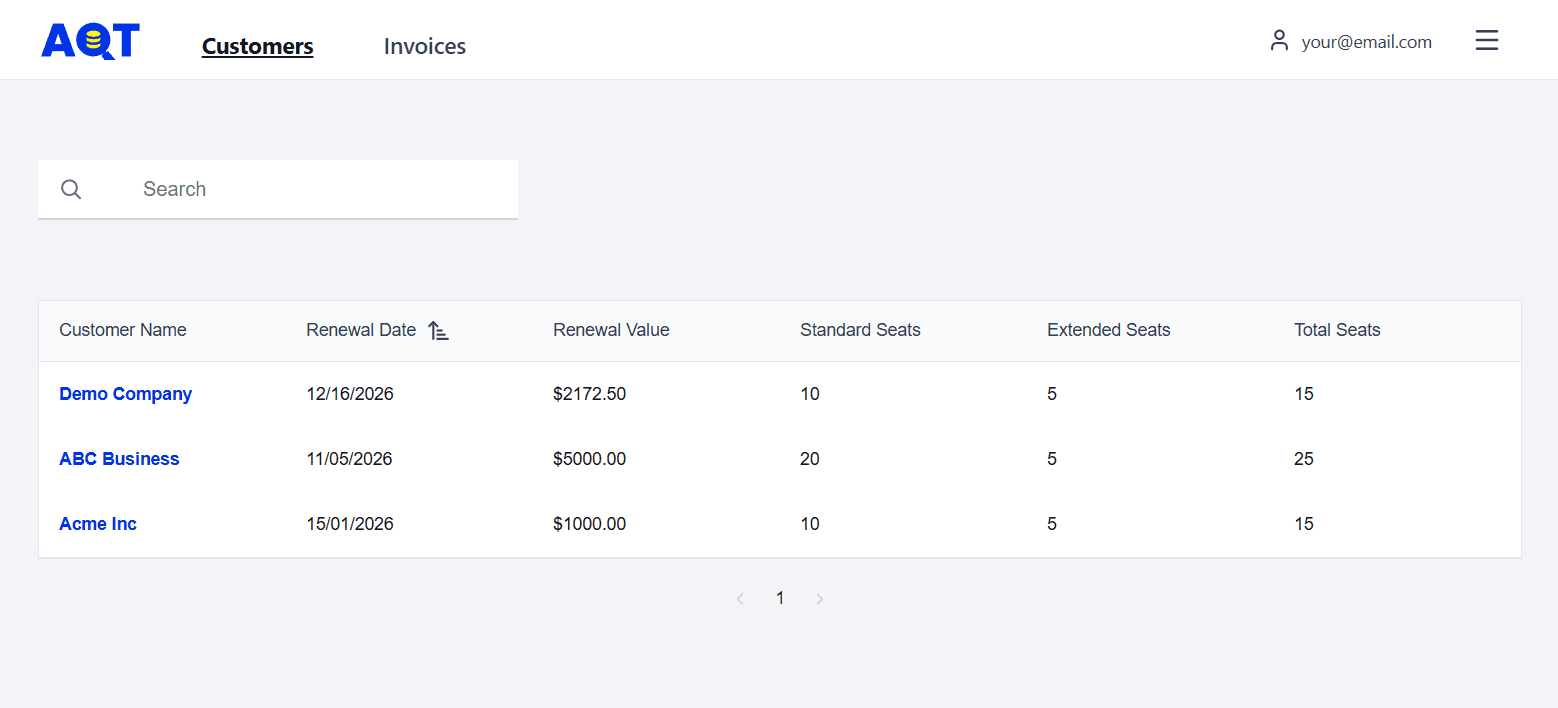
Customers — the list of all customers you manage.
Invoices — the list of all invoices issued to you.
Customers are assigned to resellers manually by the AQT team. If you manage a customer with an active AQT One subscription and they don't appear in your list, email support@querytool.com and we'll assign them.
To perform actions for a specific customer, navigate to the Customers tab and select the customer from the list.
The Customer Page
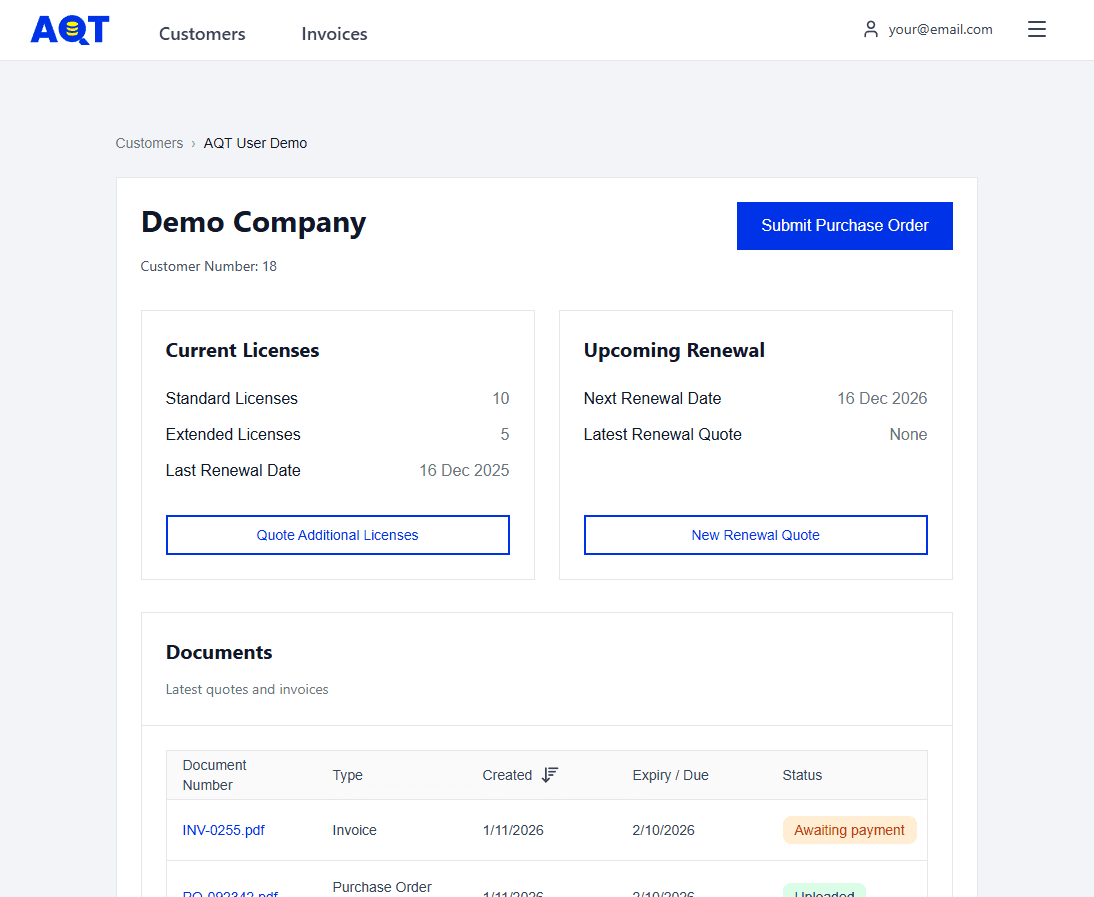
Each customer page provides an overview of the customer’s licensing status and access to all related documents.
Current Licenses — Displays the total number of licensed seats currently available to the customer.
Last Renewal Date — The date on which the customer’s most recent renewal was completed.
Next Renewal Date — The scheduled date of the customer’s next license renewal.
Latest Renewal Quote — The invoice number of the quote for the upcoming renewal. This is generated automatically as the renewal date approaches, or can be generated manually by selecting “New Renewal Quote”
Documents — Contains all quotes, invoices, and purchase orders associated with the customer.
Submitting a Purchase Order
Submitting a PO is a two-stage flow: generate the quote, then submit the PO against it.
To create a new quote:
Navigate to the Customers tab and select the relevant customer.
From the customer page, click Quote Additional Licenses.
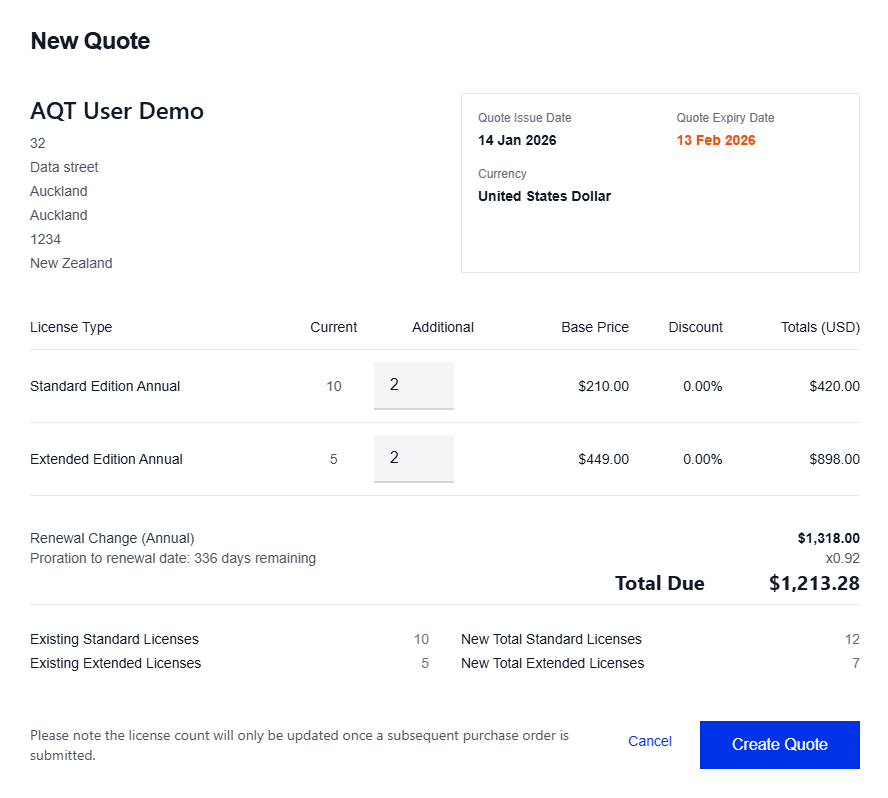
Enter the number of Standard Edition and Extended Edition licenses required in the Additional column.
★ The quote will be prorated based on the upcoming renewal date.Click Create Quote.
Stage 1: Generate the quote
There are two quote types depending on what the customer is buying.
Additional licenses (mid-cycle): When a customer needs more seats added to their current subscription.
From the customer page, click Quote Additional Licenses.
Enter the number of Standard Edition and Extended Edition licenses required in the Additional column.
Click Create Quote. The quote is automatically prorated to the customer's next renewal date.
Renewal (end of cycle): When the customer is renewing their existing licenses for another term.
A renewal quote is generated automatically as the renewal date approaches and appears as the Latest Renewal Quote on the customer page. You can also generate one manually by clicking New Renewal Quote.
Stage 2: Submit the Purchase Order
To submit a purchase order, you must first have created a quote containing the same details as your purchase order.
Click Submit Purchase Order in the top right corner.
In the dropdown, select the quote you wish to process.
Review the details of the selected quote and ensure they match your purchase order.
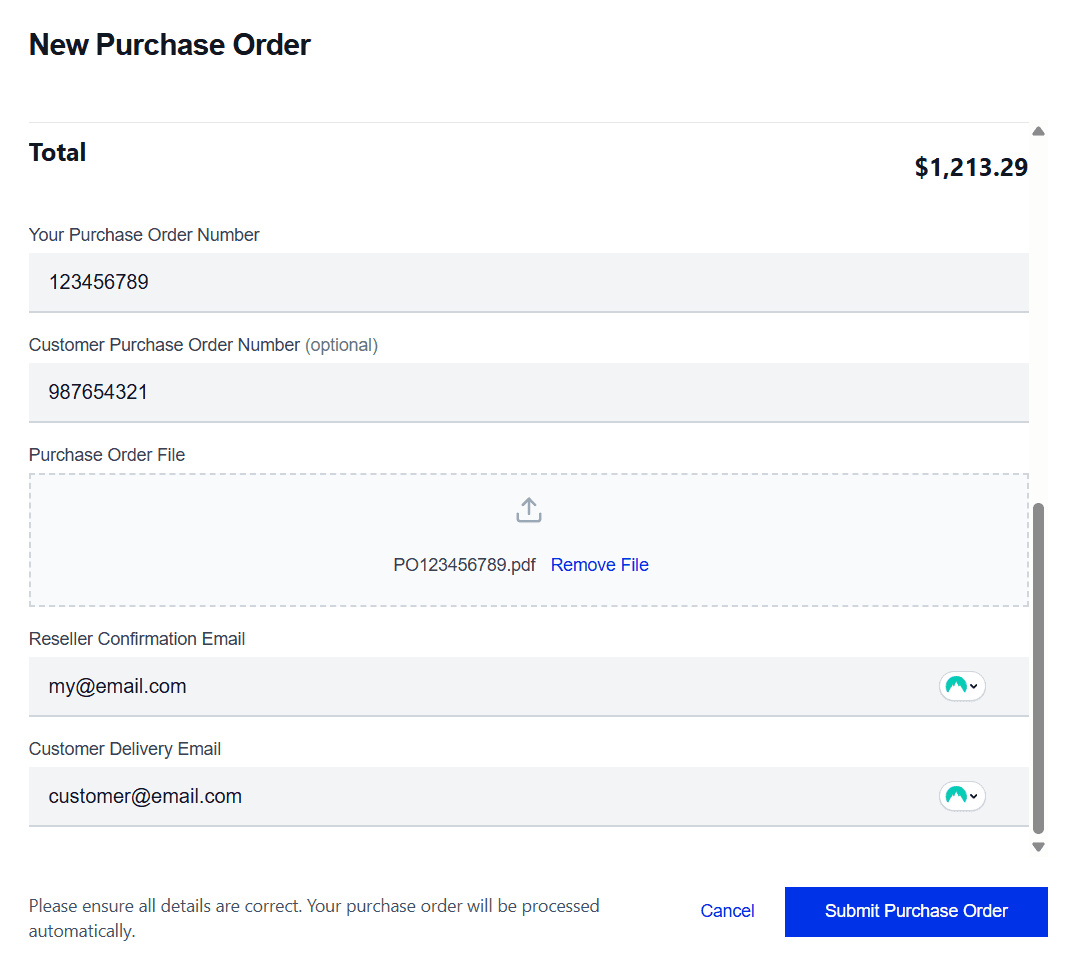
Scroll down to the bottom, and enter the following details:
a. Your purchase order number
b. The customer’s purchase order number (optional, used in email confirmation)
c. The purchase order PDF
d. Reseller Confirmation Email — the email address you wish to receive confirmation of PO processing and license delivery
e. Customer Delivery Email — the email address of the customer who will receive confirmation of the increase to their license allocationClick Submit Purchase Order
Please note that your PO will be processed instantly and automatically. Please make sure all details are correct before submitting!
Receiving the Invoice for a Purchase Order
After submitting your purchase order will also be automatically emailed to your billing email address. The billing email address can be changed at by going to the Invoices tab and clicking Update Billing Details.
The file can also be downloaded directly from the confirmation modal that appears after the purchase order is submitted.
License Delivery for your Purchase Order
After you submit a purchase order, the license allocation for the customer will automatically be increased based on the number of licenses purchased. A confirmation email will be sent to the Customer Delivery Email you provided when submitting the purchase order, and the Reseller Confirmation Email will be copied into the delivery.